Find eBay Sold Prices: Use Product Research or Ripbin for Cards
By Ripbin Research · Published 2026-09-04
Find eBay Sold Prices: Use Product Research or Ripbin for Cards
Use eBay’s Sold filter for a fast read on recent sales, then switch to eBay Product Research when you need real depth. The Sold filter surfaces recent completed transactions over the last few months, while Product Research (found inside Seller Hub) pulls sold-price history going back up to multiple years along with sell-through rates and accepted Best Offer amounts. Whichever tool you use, always double-check condition and shipping costs before trusting a number.
TL;DR:
- Using the Sold filter on eBay’s search bar reveals recent transactions but only covers the last few months unless you use Seller Hub’s Product Research for up to three years of data.
- Mobile viewing of sold prices is limited and often requires updating the app or switching to a desktop or mobile browser for full filtering capabilities.
- Reliable sold data requires filtering for condition, matching variants, and analyzing multiple sales to exclude outliers and account for shipping costs; single high sales are not indicative of market value.
- Product Research separates final sale prices from negotiated offers and provides seasonal trends, making it essential for pricing seasonal or low-volume items accurately.
- Combining eBay sold searches with niche tools like Ripbin helps ensure grading differences are accounted for, especially in collectibles like trading cards, preventing mispricing.
Table of Contents
- How to View Sold Prices on eBay (Desktop Step-by-Step)
- How to View Sold Prices on eBay Mobile (App and Mobile Web)
- When the Quick Filter Isn’t Enough: Use Seller Hub Product Research
- How to Read Sold Prices Without Fooling Yourself
- Why Sold Prices Might Not Show Up (And How to Fix It)
- When a Category-Specific Price Database Helps More Than eBay Search
- A Practical Checklist for Sold-Price Research
- Skip the Search Grind: Check Card Values Instantly With Ripbin
- Sources
How to View Sold Prices on eBay (Desktop Step-by-Step)
The fastest route to sold comps starts with a regular search, not a separate tool. Type your item into eBay’s search bar, then look at the left sidebar under “Show only” and check the box for Sold Items. That single click filters out active auctions and shows you only what actually sold, which is the number that matters when you’re pricing something to sell or deciding what to pay.
Completed listings (a slightly different filter than Sold Items) show items whose listings have ended, whether they sold or not. That’s useful for spotting price ceilings, since you can see what didn’t move even at a high price.
For more control, use eBay’s Advanced Search page directly. Under “Search including,” tick Sold listings, then narrow by category, item condition, and a price range. This is where most casual browsers stop, but a few extra clicks here save you from wading through mismatched results later.
Here’s the full desktop workflow:
- Run your search, then check “Sold Items” in the left filter panel.
- If you need finer filtering, open Advanced Search and select “Sold listings” plus your category and condition.
- Add the URL parameter
&LH_Sold=1(or&LH_Complete=1for ended listings, sold or not) to the end of your search results link to force the filter without clicking anything. - Sort by “Time ending soonest” or “Price + shipping: highest first” to spot the range fast.
- Narrow further using an exact variant, MPN, UPC, or ISBN if the item has one, since generic keyword searches pull in near matches that skew your average.
Pro Tip: Bookmark the URL with &LH_Sold=1 attached once you’ve dialed in your filters. Next time you check the same item, you skip the clicking entirely and land straight on sold results.
How to View Sold Prices on eBay Mobile (App and Mobile Web)
The eBay app buries the sold filter one layer deeper than desktop, which trips up a lot of people sourcing items on the go.
- Search for your item, tap Filter, then tap Show more near the bottom of the filter list.
- Toggle Sold Items on. This automatically enables the Completed toggle as well, since sold results are a subset of completed ones.
- If you don’t see a Sold Items toggle at all, the app may need updating, or you may not be signed in. Sold data on mobile has been inconsistent for logged-out users.
- No luck in the app? Open eBay’s Advanced Search in your phone’s mobile browser instead. It’s slower to load but carries the same filtering options as desktop.
- Clearing the app’s cache (in your phone’s app settings) fixes missing filters more often than you’d expect, especially after an eBay app update.
- On mobile, sold prices usually appear in green text next to the item, while active listing prices appear in black or the default text color. That color cue is the quickest way to confirm you’re actually looking at a completed sale and not a live auction.
Sorting options are more limited on mobile than desktop, so if you’re doing serious comp research, switch to a laptop or desktop browser once you’ve narrowed your search terms.
When the Quick Filter Isn’t Enough: Use Seller Hub Product Research
The standard Sold filter only shows you the last three months or so of activity. For anything seasonal, low-volume, or collectible, that window is too narrow to tell you much. This is where eBay Product Research (the tool formerly branded as Terapeak) earns its keep. It’s built into Seller Hub and pulls up to one to three years of historical sold data, depending on your access level.
You’ll find it under Seller Hub → Research → Product Research. Once you search a product there, you get a set of calculated metrics that standard sold-listing filters simply don’t show:
- Sell-through rate (the percentage of listings that actually sold)
- Average sold price across your date range
- Sold price range, from lowest to highest
- Seasonal trend charts showing when demand spikes
- Actual Best Offer accepted prices, which is data you cannot see anywhere in a normal sold search
That last point deserves attention. When a buyer and seller settle on a price through Best Offer, eBay’s standard sold-listing display shows only the final price, not that it was negotiated down from a higher ask. Product Research separates that out, so you’re not accidentally treating a lowball accepted offer as the “real” market price.
Higher-tier eBay Store subscriptions add extra sourcing insights inside Product Research, and the mobile version now includes barcode scanning, letting you point your phone camera at an item and pull sold history on the spot. That’s a genuine time-saver at estate sales or thrift stores, where you don’t have time to type out a full listing title.
Use Product Research whenever you’re pricing something seasonal, something that only sells a handful of times a year, or anything where the standard 90 day window would leave you guessing.
How to Read Sold Prices Without Fooling Yourself
Raw sold data lies to you if you take it at face value. A single high sale from a bidding war between two impatient buyers isn’t a price, it’s an anomaly. Here’s how to turn a page of sold listings into an actual number you can trust:
- Pull 10 to 20 close comps, matching condition, variant, and included accessories as tightly as possible. A “like new” sale and a “acceptable” sale of the same item aren’t comparable, no matter how similar the title.
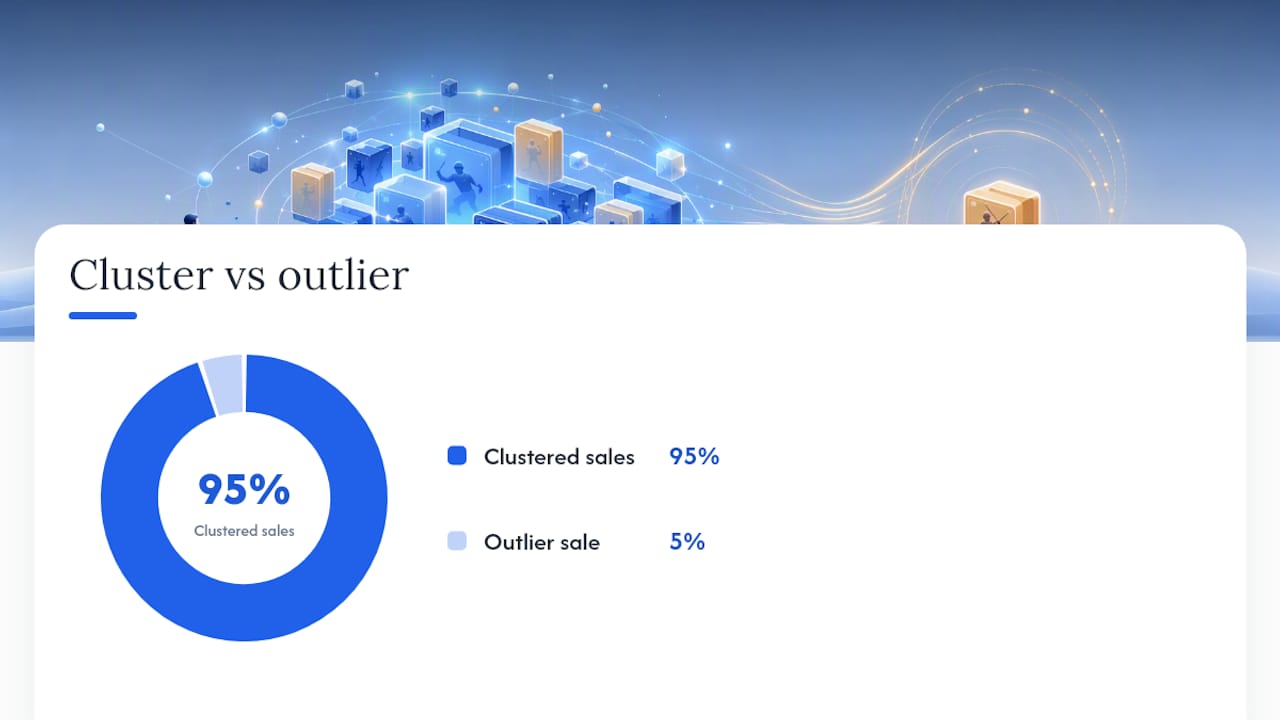
- Throw out the obvious outliers. If nineteen sales cluster between $40 and $55 and one sold for $110, that $110 sale is noise, not signal. Price off the median of the cluster, not the average of everything.
- Add shipping cost into your comparison. A $50 sale with free shipping and a $45 sale plus $8 shipping are not the same transaction. Compare total buyer cost, not just the listed price.
- If you’re selling, subtract eBay’s final value fee and any payment processing cost from your target price to see actual profit, not just top-line revenue.
- Check the sell-through rate before committing to a price. Low sell-through means thin demand, and thin demand means wider price swings, so treat any single comp with more skepticism when volume is low.
That last point matters more than most sellers realize. Sold listings convert guesswork into actual transaction evidence, but only when there’s enough volume to smooth out the noise. A handful of sales on a rare item can send you chasing a price nobody will actually pay.
Pro Tip: If you spot a suspiciously round or oddly specific final price, check whether it came from a Best Offer negotiation. Product Research will show you the accepted-offer figure directly instead of leaving you to guess.
Why Sold Prices Might Not Show Up (And How to Fix It)
A few common snags stop sold data from loading, and most have simple fixes.
- You’re not signed in. Some recent platform changes redirect logged-out users straight to a sign-in page when they try to view sold or completed listings, so log in before troubleshooting anything else.
- Mobile is hiding the filter. Switch to a desktop browser or use mobile Advanced Search if the app’s filter panel seems incomplete.
- You’re outside the 90-day window. The public sold filter only reaches back about three months. Anything older requires Product Research.
- Your search is too narrow or too broad. Try searching by MPN, UPC, or ISBN instead of a generic keyword, or loosen an overly specific filter that’s returning zero results.
- You need your own sales history, not the public feed. Sellers can pull their own transaction records for up to roughly two years through Seller Hub Orders or My eBay, which is the definitive record of what you personally sold and for how much.
When a Category-Specific Price Database Helps More Than eBay Search
Card collectors run into a specific problem eBay’s tools don’t fully solve: identical-looking listings that aren’t actually identical. A PSA 9 and a raw copy of the same card are worlds apart in value, and eBay’s sold filter won’t sort that for you automatically. This is where a niche tool built for one collecting category, rather than every product on earth, starts pulling ahead.
Ripbin was built around that exact gap for sports and Pokémon cards. A few things it handles that general eBay search doesn’t:
- Live values sourced from actual sales, tracked separately by grade, so a PSA 10 and a PSA 8 of the same card don’t get lumped into one blurry average.
- A scan-to-value feature that gives you an instant read on a card’s worth, useful when you’re standing at a card show or a thrift store deciding whether to buy on the spot.
- A personal collection locker that tracks your holdings’ value over time without you re-searching the same cards every month.
The smartest approach combines both tools rather than picking one. Run your eBay sold search to see recent transaction activity in the open market, then cross-check against Ripbin’s aggregated grade-by-grade history to confirm you’re comparing truly like items. For high-value or rare cards, where a single mismatched grade can swing the price by hundreds of dollars, that second check is what keeps you from overpaying or underselling. Third-party aggregated data generally works best as a supplement to verified eBay searches, not a replacement for them.
A Practical Checklist for Sold-Price Research
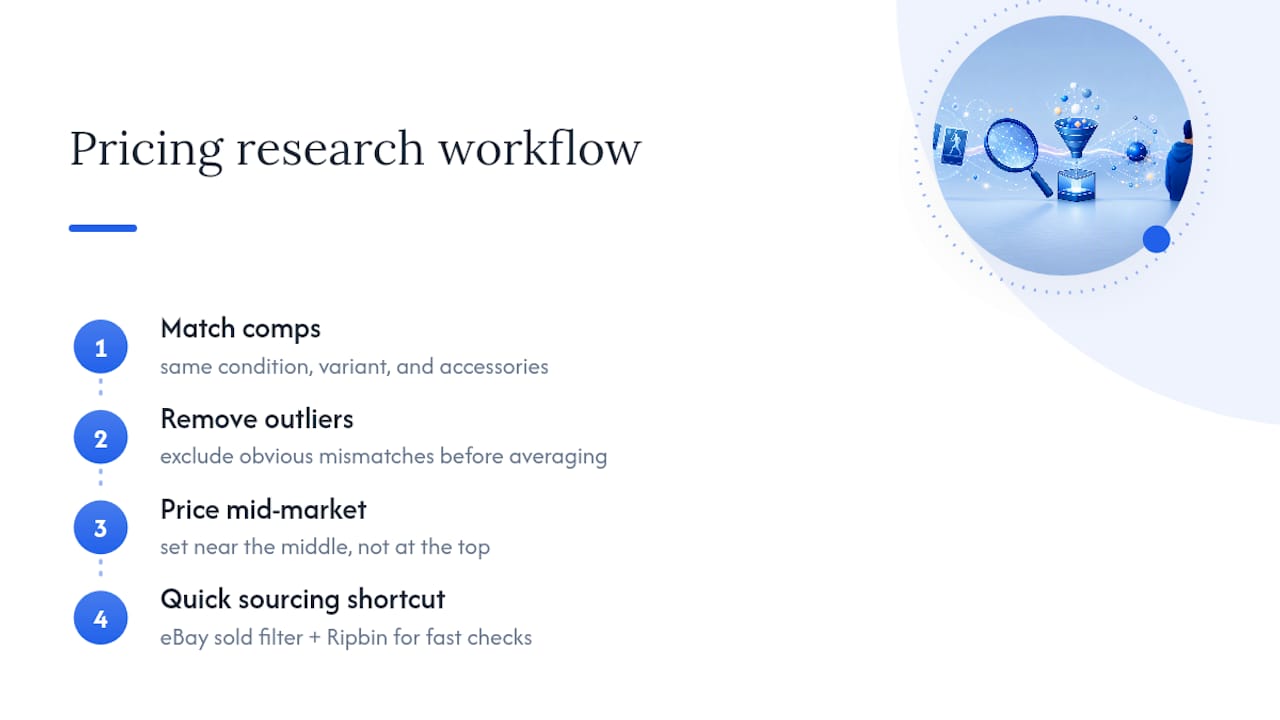
Good pricing research comes down to habits more than tools. Start with matched comps: same condition, same variant, same accessories. Knock out anything that looks like an outlier before you calculate an average, and price near the middle of what’s left, not the top.
Bookmark your URL-parameter searches (that &LH_Sold=1 trick) for anything you check regularly, and reach for Product Research the moment an item feels slow-moving or seasonal, since a thin 90-day window will mislead you on those every time.
When you’re sourcing in person, whether that’s a card show, an estate sale, or a thrift store, speed matters more than depth. Pull up the eBay app’s sold filter for a quick gut check, and if cards are involved, run a Ripbin scan or lookup alongside it. Two fast data points beat one slow, perfect one when you’ve got thirty seconds to decide.
— Saad
Skip the Search Grind: Check Card Values Instantly With Ripbin
Ripbin gives card collectors what eBay’s sold filter can’t: a value already sorted by grade, updated from real sales, without you building a comp set by hand every time. Where eBay search asks you to filter, sort, and cross-reference manually, Ripbin’s card database surfaces the number directly, then lets you track it in a personal locker as the market moves.
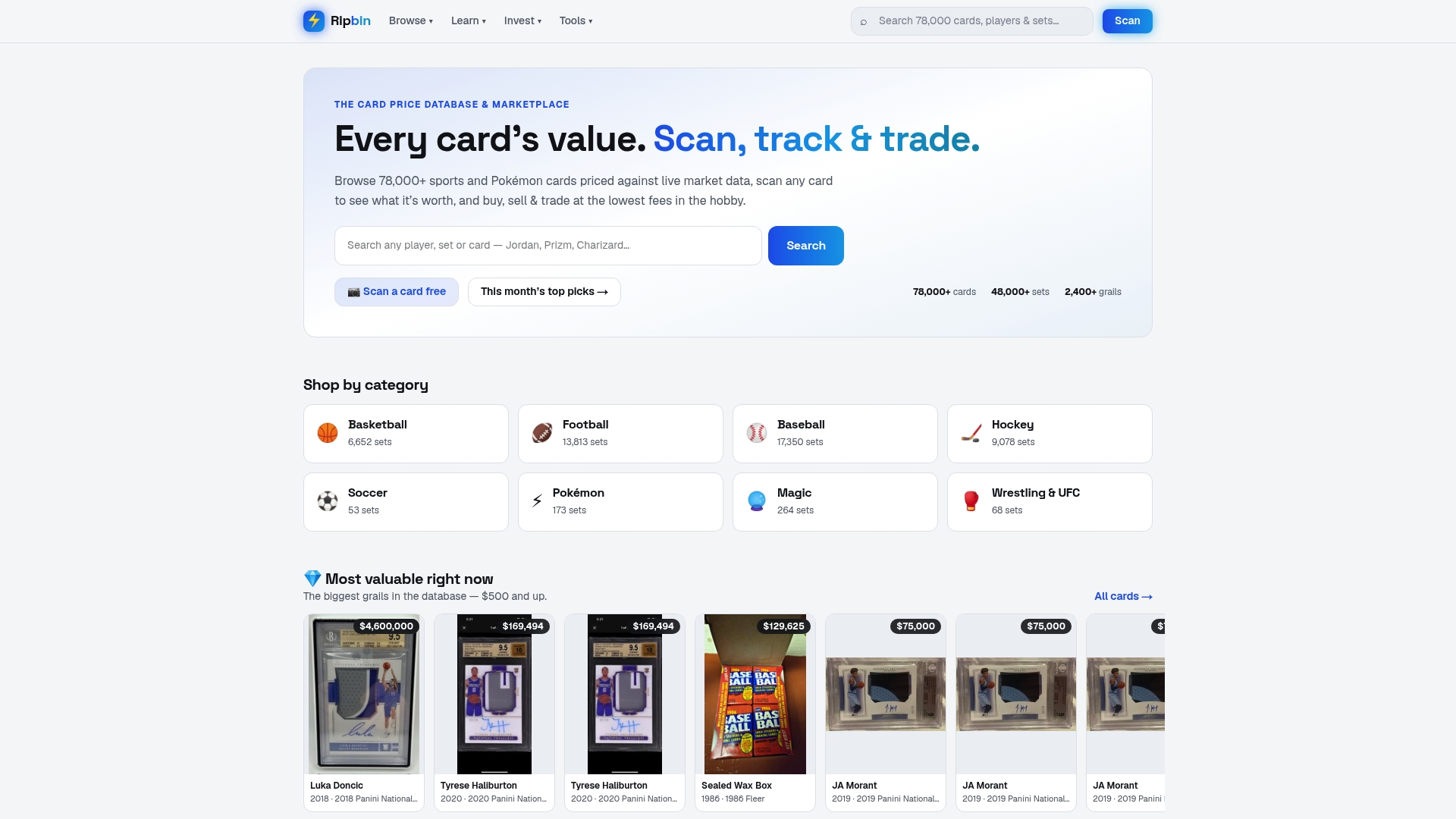
That matters most for graded cards, where a PSA 10 and a PSA 8 of the identical card can carry wildly different price tags, and a mismatched comp on eBay can send your estimate off by hundreds of dollars. Ripbin’s scan feature also means you’re not stuck typing search queries at a card show table while someone else buys the card you’re still researching. Browsing and scanning are free, so you can check a value before you commit to a purchase without extra cost.
If you’re building or pricing a collection, start by searching your cards on Ripbin and compare what you find against your eBay sold comps side by side.
Sources
Verify these directly for the most current filtering options: eBay Advanced Search for sold-listing filters, and eBay’s Product Research help page for historical data and metrics.
- eBay help: Product Research features and metrics
- eBay advanced search
- SmartScout guide: how to see sold items on eBay