How to Scan Pokémon Cards for Instant ID and Live Pricing
By Ripbin Research · Published 2026-08-21

How to Scan Pokémon Cards for Instant ID and Live Pricing
Yes, you can scan a Pokémon card with your phone and get an identification and a price estimate in about two to five seconds. The fastest route is a dedicated phone scanner app that matches your photo against a card database and returns the name, set, and an estimated value. That number is a starting point, not gospel; variant, language, and condition all shift the real price. Ripbin builds on that with free scanning, live values pulled from actual sales, and a collection locker so your scans turn into an organized, trackable archive instead of a folder of random photos.
- Open a scanner app, snap the card in good light, and check the match.
- Confirm variant, set, and condition before trusting the price shown.
- Save the card to a collection or locker so you can track it over time.
Quick fact: Phone-based scanners typically return a match and a price in 2 to 5 seconds, which is why most collectors now scan before they ever open a price guide.
Key Takeaways
Accurate Pokémon card scanning depends on good lighting, verified variant and condition details, and treating scanner prices as a starting estimate rather than a final sale figure.
| Point | Details |
|---|---|
| Use a phone app for speed | Phone scanners return an ID and price estimate in about 2 to 5 seconds for single cards. |
| Verify before you trust the price | Always confirm name, set, variant, language, and condition against the scanned result. |
| Match your tool to the job | Use phone apps for casual scans and contactless flatbed scanners for archiving valuable cards. |
| Protect cards during scanning | Aim for roughly 300 dpi image quality and avoid non-straight-path feeder scanners. |
| Track values on Ripbin | Save scans to a Ripbin collection locker and check live, sale-sourced prices across 78,000+ cards. |
Table of Contents
- How to Scan Pokémon Cards Step by Step
- Phone Apps, Flatbed Scanners, or Feeder Scanners: Which One Fits Your Stack?
- Keeping Cards Safe While You Scan
- Scanning a Large Collection Without Losing Your Mind
- What Ripbin Adds to Your Scanning Workflow
- Start Scanning and Tracking Your Cards on Ripbin
- Frequently Asked Questions
- Sources
How to Scan Pokémon Cards Step by Step
Getting a clean, accurate scan comes down to four stages: prepare, capture, verify, save. Skip the prep and you’ll fight glare and blur for every card in the stack.
- Prepare your setup. Pick a plain, dark, non-reflective background and set up even, diffuse lighting. If a card is in a sleeve, decide whether to remove it. Clear sleeves usually scan fine; textured or scratched ones cause misreads.
- Capture the image. Hold your phone about 6 to 8 inches above the card, keep your hands steady (or use a mini tripod), and frame the entire card inside the guide box. Tilt slightly on foils to knock out glare before you tap the shutter.
- Let the app do the matching. Most scanner apps run a quick pipeline behind the scenes: capture, image analysis, database match, then a pricing lookup against recent sales. This happens automatically, but it’s worth knowing why a bad photo produces a bad match.
- Verify the result. Check that the name, set, variant (holo, reverse holo, promo), and language match what’s in your hand. Confirm the price logic makes sense for the condition you’re actually holding, not the near-mint default most apps assume.
- Save or export. Add the card to a collection inside the app, or export to CSV if you’re building a spreadsheet inventory. This step is what turns a one-off scan into usable data.
Pro Tip: Scan the same card twice from slightly different angles if it’s a foil. One angle usually kills the glare that the other one can’t avoid.
Phone Apps, Flatbed Scanners, or Feeder Scanners: Which One Fits Your Stack?
The right tool depends on volume, card value, and how much archival quality you actually need.
- Phone apps win on speed and convenience. They’re built for single-card lookups, casual inventory work, and checking a pull right after you open a pack.
- Contactless overhead and flatbed scanners produce sharper, more consistent images and are the better choice for archiving valuable cards, since they avoid the bending risk that comes with handling cards repeatedly. Hardware like the ScanSnap SV600 can even capture several cards in one pass and auto-crop each image, which speeds up large batches without touching the cards more than necessary.
- Document feeder (ADF) scanners deserve a warning. Standard feeders that don’t use a straight paper path can crease or bend a card as it feeds through. If you’re using an ADF at all, confirm it’s a straight-path, card-safe model first.
- Manual or desktop workflows still beat app scanning for vintage prints, Japanese-language cards, or anything the app keeps misreading. When a scanner can’t find a confident match three times in a row, stop trusting it and look the card up by hand.
Keeping Cards Safe While You Scan
Image quality and card condition pull in opposite directions if you’re not careful, so a few small habits protect both.
- Leave a card sleeved when the sleeve is clean and clear; pull it out only if the scanner keeps flagging a poor match, since handling raises the risk of fingerprints and edge wear.
- Aim for roughly 300 dpi of detail. Most modern phone cameras hit that easily at close range, but a shaky hand or low light will tank the effective resolution even on a good sensor.
- Use diffuse light and a dark, neutral background. Skip the direct flash. It’s the single biggest cause of blown-out foil scans.
- For foils, tilt slightly and take two or three shots at different angles rather than fighting for one perfect frame.
Pro Tip: If a card refuses to scan cleanly after three attempts, the sleeve or the glare is almost always the culprit, not the app.
Scanning a Large Collection Without Losing Your Mind
Bulk scanning rewards a little upfront organization far more than it rewards speed.
- Sort before you scan. Group cards by set, rarity, or condition first. It’s much faster to scan a pre-sorted stack than to sort afterward from a jumbled pile of photos.
- Run a fast triage pass. Scan everything quickly for identification, then set aside anything the app flags as valuable or uncertain for a second, slower re-scan. No app replaces a human double-check on a high-dollar card.
- Export and name consistently. Use CSV export for spreadsheet tracking, and settle on one file naming pattern (set, card number, condition) before you start. Cloud sync saves you if your phone dies mid-project.
A committed collector can usually clear 100 to 200 commons an hour once the lighting and background are dialed in. Rare cards take longer, and that’s fine. That’s what the second pass is for.
What Ripbin Adds to Your Scanning Workflow
Scanning tells you what a card is. Ripbin tells you what it’s actually worth right now and gives that information somewhere permanent to live. The platform tracks live market data across more than 78,000 sports and Pokémon cards, pulling values from real completed sales rather than list prices or guide estimates that lag behind the market.
By the numbers: Ripbin covers over 78,000 cards with pricing sourced directly from actual sales, not asking prices.
- Every scanned card can drop straight into your personal collection locker, so your inventory stays organized without a separate spreadsheet.
- Ripbin’s data-driven reports flag cards worth watching, turning your scan history into something closer to a research tool than a static list.
- There’s no browsing fee. You see transparent, sale-based values whether you’re checking one card or your whole binder.
Pair that with the Pokémon card investing guide if you’re scanning with an eye toward building long-term value rather than just cataloging a collection.
One honest note on scanning and pricing
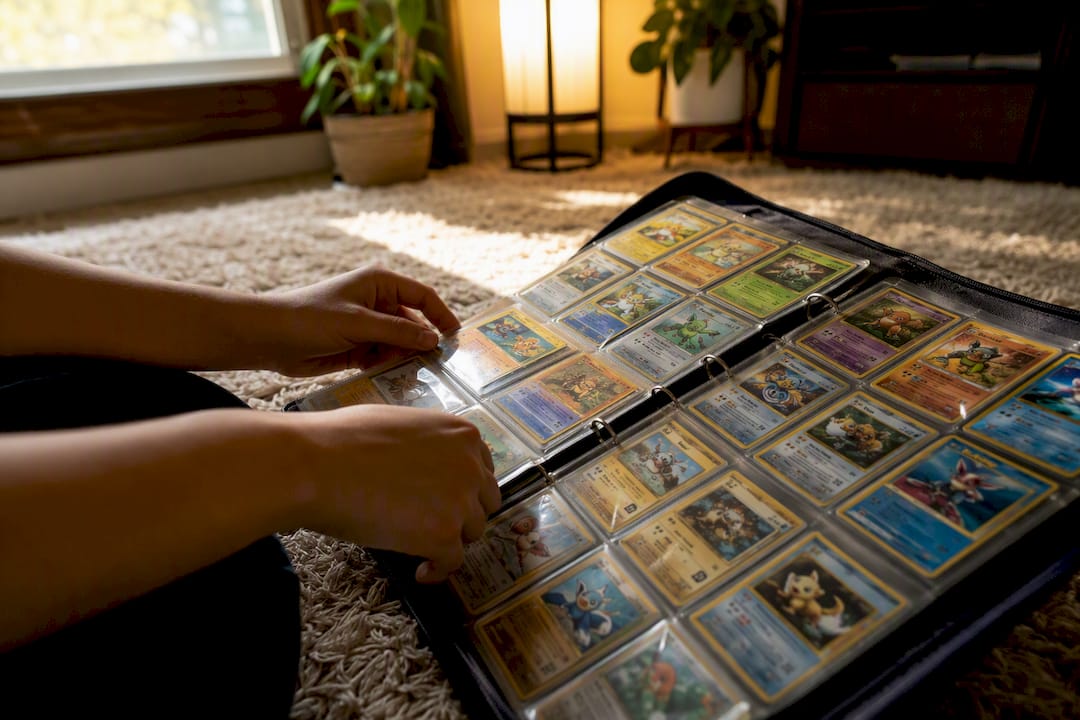
Scanning turned my scattered binders into something I could actually search and track in minutes instead of hours. The one caveat worth repeating: a scanned price is a starting point tied to assumed condition, not a guaranteed sale figure. Grade and buyer demand still move the real number.
Start Scanning and Tracking Your Cards on Ripbin
Ripbin is built for exactly the workflow this guide just walked through: scan a card, get an instant match, and see a live value pulled from actual sales instead of a stale price guide. There’s no browsing fee to check what your cards are worth, and every scan can go straight into your own collection locker instead of sitting in your camera roll.
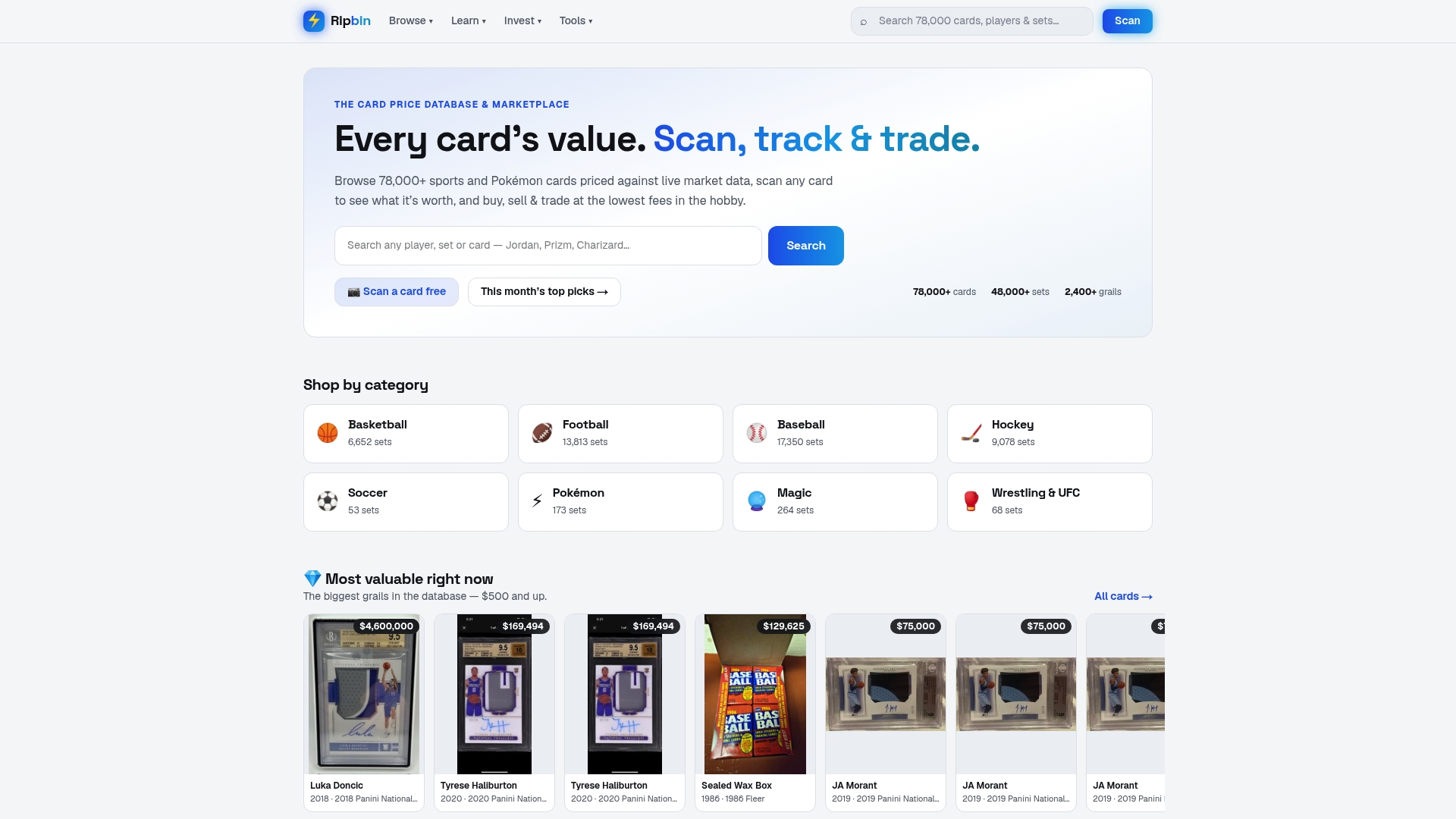
Open Ripbin’s card browser to search sets and checklists, scan your next pull, and save it to your locker in one pass. If you’re weighing whether to hold or sell, the sports card investing guide walks through how to read the data before you decide.
Frequently Asked Questions
Can I scan Pokémon cards for free? Yes. Many scanner apps, including options listed on the App Store, offer free scanning without requiring an account, though creating one usually unlocks saved collections.
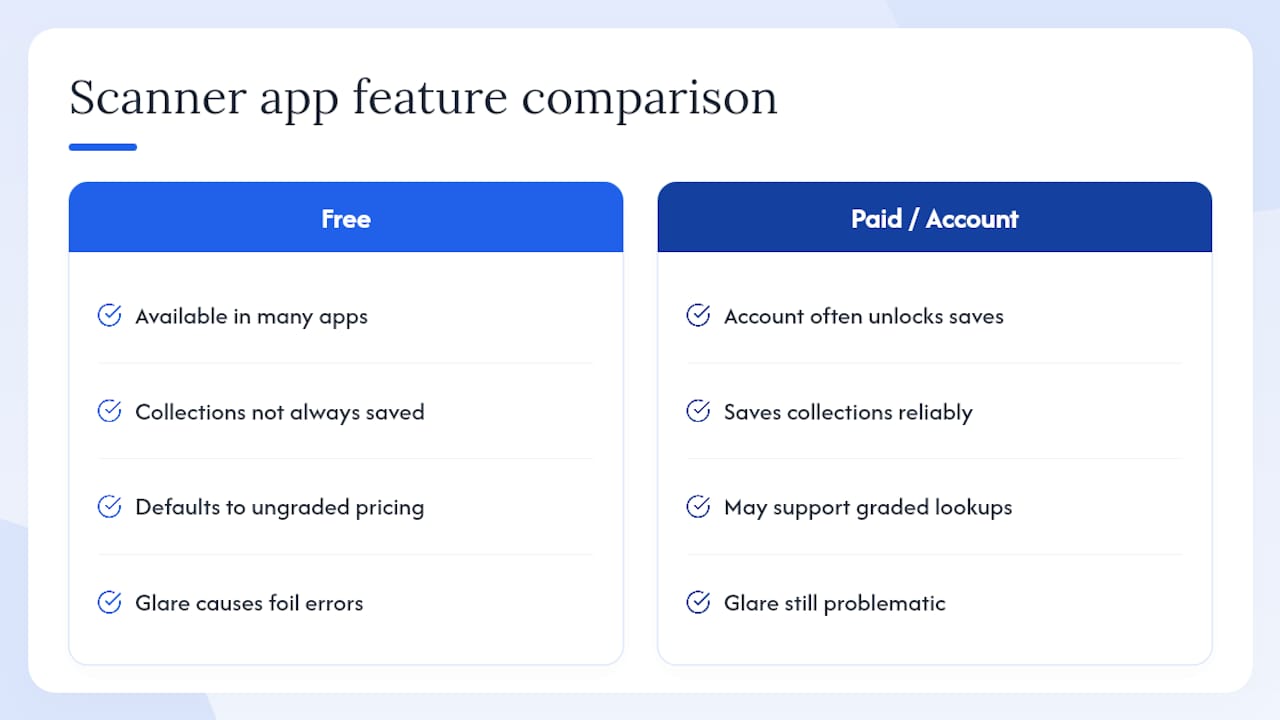
Do scanned prices reflect graded card values? Usually not. Most scanners default to ungraded, near-mint pricing unless the app specifically supports graded lookups, so a slabbed card’s real value can differ sharply from what the scan shows.
Why does my scan keep misreading foil cards? Glare is almost always the cause. Tilt the card slightly, avoid direct flash, and take two or three shots at different angles until one comes back clean.
Can I scan cards while they’re sleeved? Clean, clear sleeves rarely cause problems. Scratched, thick, or textured sleeves are the usual culprit when an app keeps failing to match a card, and removing them often fixes it.
What’s the best way to scan a large collection quickly? Sort by set or rarity first, run a fast triage scan across the whole stack, then do a slower second pass on anything flagged as valuable or unclear.
Sources
- How to scan trading cards: The ultimate guide - Ricoh Scanners
- Can You Scan Pokemon Cards to Get Prices? (Full Guide) - Misprint